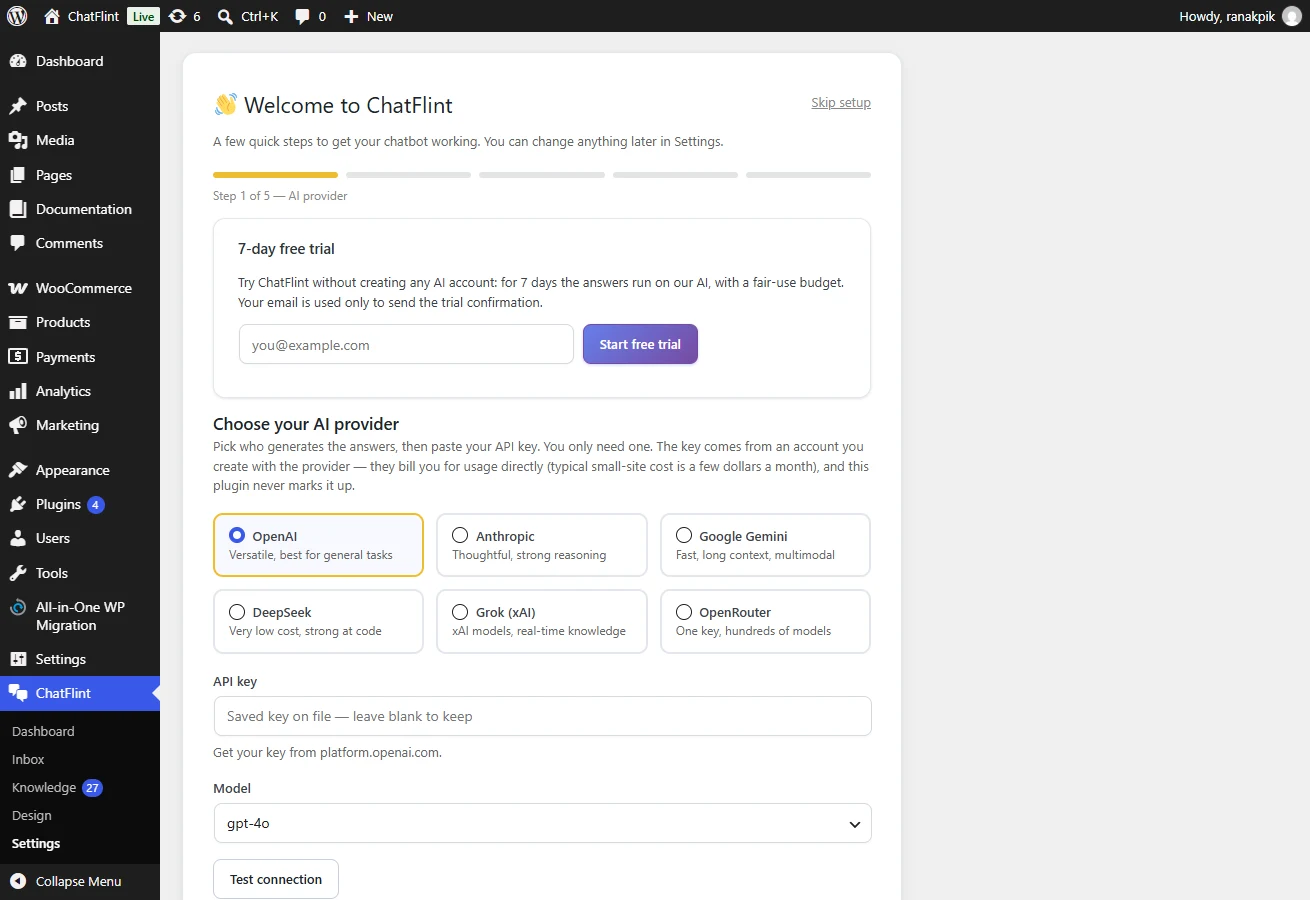
Where it is: It opens by itself on first activation; the Setup wizard link at the foot of the navigation rail re-opens it later.
Nothing in the wizard is permanent — everything it sets can be changed later in Settings.
What it asks
- Your AI provider and key. Pick a provider and paste an API key. The wizard tests the key before it lets you continue, so a typo is caught here rather than in front of a visitor.
- A model. The list is fetched live from your provider. A small, fast model is the right starting point.
- Who the bot is. Its name, and a short description of the tone you want. This becomes the persona.
- Your content. Tick the post types to index. On most sites that is pages, and products if you sell.
- Go live. The widget appears on your site as soon as a key is saved.
If you skip it
You can, but the chat stays hidden until an API key is saved — a chatbot with no key can only apologise, so it is better to show nothing. System Health will tell you exactly what is missing.