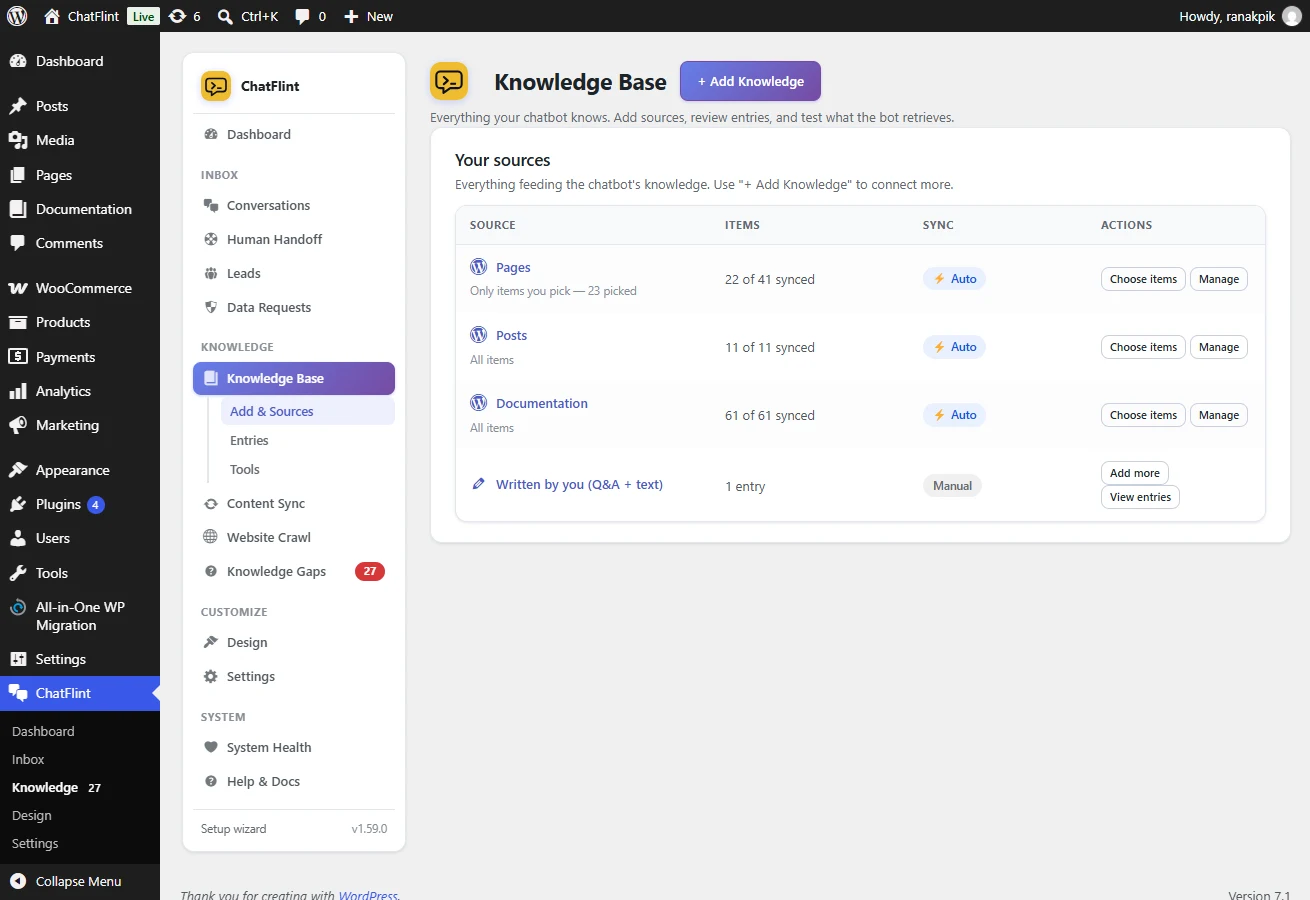
This is the main source for most sites. Go to Knowledge → Add & Sources → Add Knowledge → WordPress content, choose the post types, and start the sync.
All items, or only the ones you pick
Each post type can be set to All items or Only items I pick. Picking matters more than people expect: a site with 200 blog posts and 8 service pages usually answers better when only the pages are indexed, because the bot stops finding blog paragraphs when someone asks about your prices.
What gets extracted
- Real page content, including Elementor, Divi and Gutenberg layouts, with headings, lists and tables preserved.
- Custom fields, including ACF.
- Contact links — a phone number or email that only exists inside a link is kept.
- WooCommerce fields for products: price ranges, sale prices, stock, SKU, attributes and categories.
Staying in sync
With auto-sync on, publishing or editing an item re-indexes it within a few minutes. Unchanged content is skipped at no cost, so a nightly sweep on a large site is effectively free.
Long pages are stored as several section-labelled chunks — “About us — Pricing” — and shown as one expandable item in the entries list.